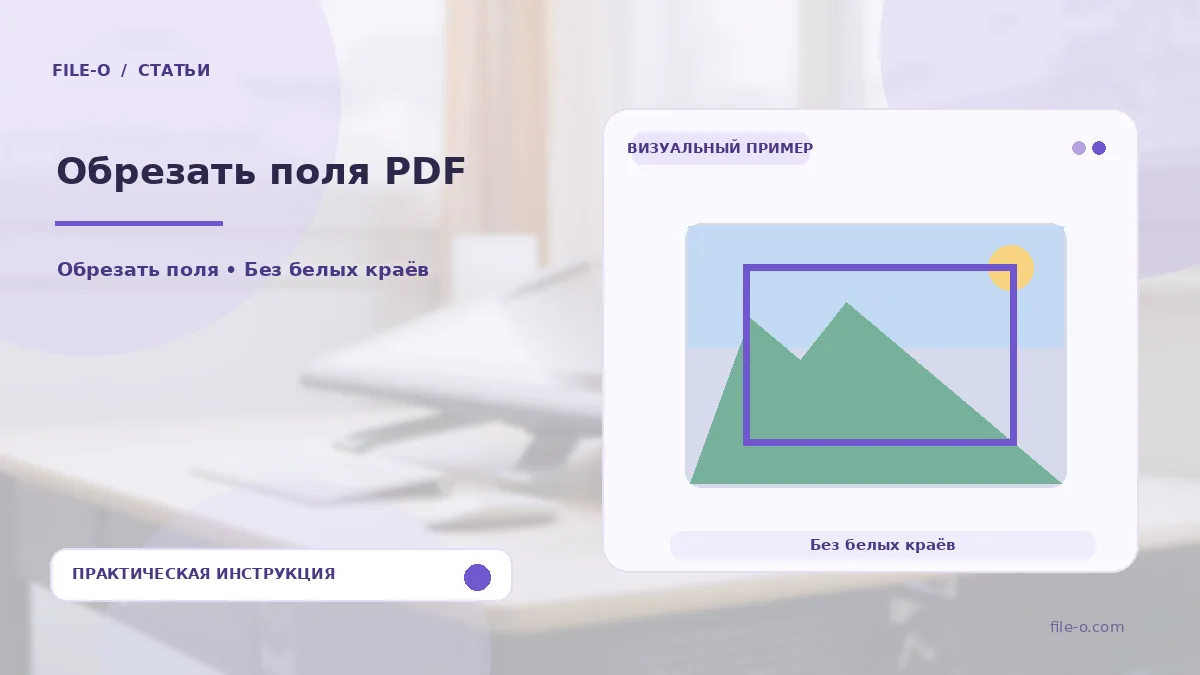
The tool allows you to visually crop the margins of PDF pages, hiding unwanted edges. You manually draw a rectangular frame directly on the page image, defining the area that will remain visible. The result is a new PDF file where the content outside your frame is hidden from view.
When this is useful
This tool is indispensable when dealing with book scans that have wide black edges from the scanner lid and you want to prepare them for comfortable printing. Another useful scenario is processing web pages saved as PDFs to remove advertising banners or site navigation headers and footers, leaving only the clean article.
Step-by-step instructions
- Upload your PDF document to the site.
- On the preview of the first page, use your mouse to draw a rectangular frame around the area you want to keep.
- Then, in the settings, choose whether to apply this frame to all pages or just the current one.
- Click the save button to download the cropped PDF.
How to verify the result
Open the downloaded PDF file and carefully review several pages at the beginning, middle, and end of the document. Ensure the crop frame did not capture any useful text or page numbers. If you cropped scans, check that the text is offset identically on all pages and the cropping did not lead to information loss.
Important limitations
Keep in mind that cropping in PDF most often works as masking: the data outside the frame is hidden but is not always permanently removed from the file structure. If you apply one frame to all pages, make sure the content on all sheets is positioned identically, otherwise text on some pages may be accidentally cropped.