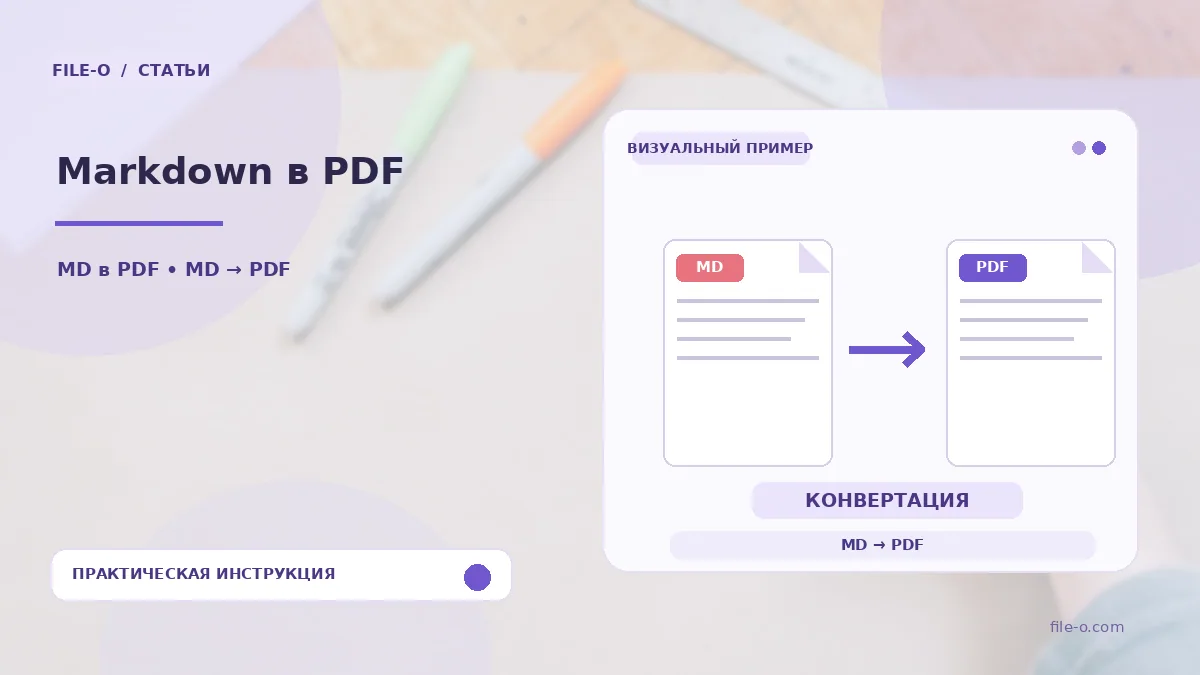
The tool converts a file with Markdown markup into a full-fledged PDF document. It interprets elements such as headings, lists, bold, and italics, visualizing them as formatted text. The output is a file ready for distribution or printing, preserving the structure of the source document.
When this is useful
You have written technical documentation for your project in a convenient Markdown editor, and now it needs to be handed over to the client in a final, non-editable form. Conversion to PDF is an ideal solution for this task. Another example: you have prepared a draft report with multi-level headings and code inserts, and you want to print it while preserving the visual hierarchy.
Step-by-step instructions
- Go to the tool page and use the upload button to select the file with the .md extension on your device.
- Before starting, you can review and, if necessary, adjust the conversion settings, such as margin size or font style.
- Click the button to start the conversion and wait for the processing to finish.
- Download the final PDF document by clicking the link that appears.
How to verify the result
Carefully review the resulting PDF to ensure that all bulleted and numbered lists are displayed correctly, without shifting of items. Check how code blocks and quotes look, and whether their original formatting has been preserved. If the document contained links to external resources, make sure they remained clickable in the final file.
Important limitations
The tool processes standard Markdown syntax, but extended or specific markup dialects may be rendered incorrectly. The free upload limit for a single file is 20 MiB, so make sure your MD file does not exceed this size. Images embedded in the markup may appear differently in the PDF than in the editor's live preview.